MAPS · INSTRUMENT CLUSTER · DILINK
A map on your BYD
instrument cluster.
Bring Android Auto navigation to the display in front of your steering wheel. DashArc combines maps, maneuvering cameras and customization for BYD group vehicles with compatible DiLink head units.
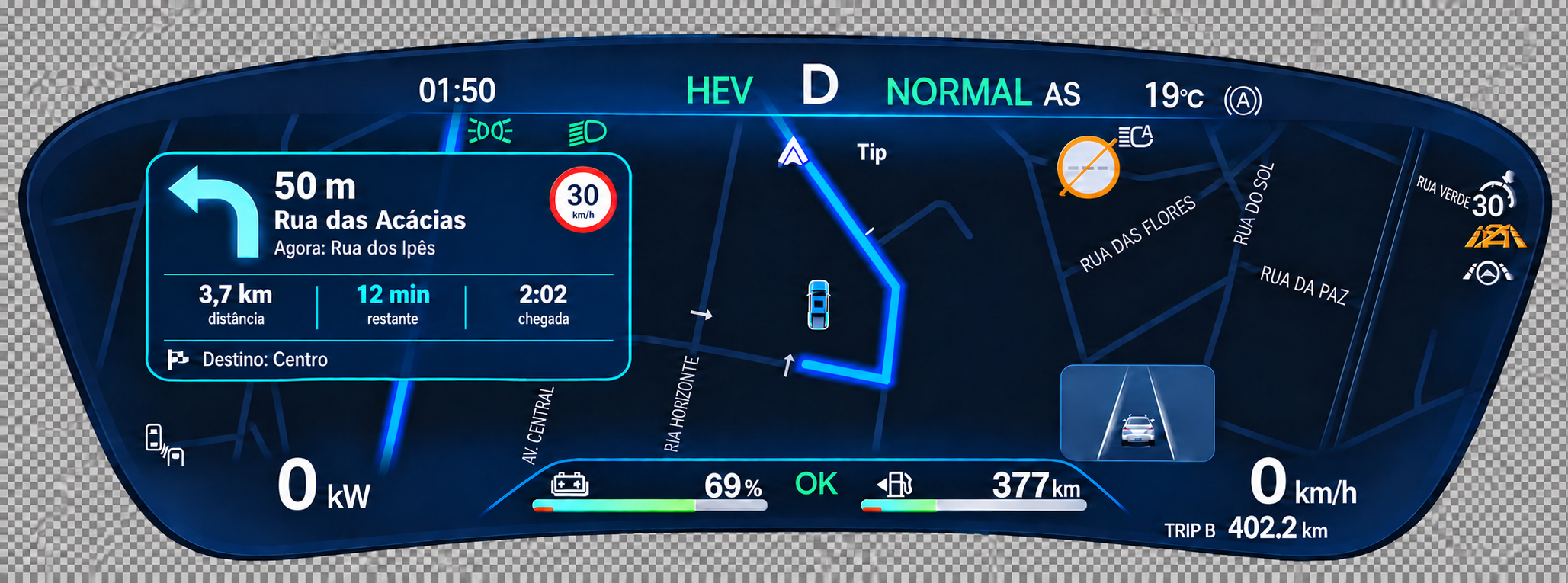
Instrument cluster or central car screen?
The central touchscreen is the infotainment head unit. The instrument cluster is the display in front of the driver, with speed, battery and driving information. Searching for a map on the car screen can refer to either display.
DashArc focuses on the instrument cluster: navigation near the driving information, with a layout you configure in the app. It also displays maneuvering cameras on the cluster.
Instrument cluster maps for BYD vehicles
DashArc is designed for BYD vehicles with DiLink head units. Start by checking your car’s head unit and software version. Installation and available features follow that configuration for each model.
Follow the DashArc installation guide, grant the permissions shown in the app and test the beta in your vehicle. Position, scale and camera layout can be adjusted in DashArc.
Find your BYD vehicle family
From hatchbacks to pickups, start with the DiLink head unit. Check your vehicle’s system and follow the installation guide to try maps, cameras and cluster customization.
Dolphin
BYD Dolphin, Dolphin Mini, Dolphin Plus, Dolphin SE and Dolphin Surf.
Song, Yuan, Atto and Sealion
BYD Song Plus, Song Plus DM-i, Song Plus Premium, Song Pro, Yuan Plus, Yuan Pro, Atto 2, Atto 3, Atto 8, Seal U, Sealion 6 and Sealion 7.
Seal, King, Han and Tang
BYD Seal, Seal 6, Seal 7, King DM-i, Qin Plus, Han and Tan / Tang.
Shark and other models
BYD Shark, Shark 6 and other BYD families: check the DiLink generation and firmware to follow the corresponding setup.
Names and versions vary between markets. Follow the regional guide for your head unit and try the beta in your own vehicle.
How to install DashArc
- Download the current DashArc beta APK.
- If your head unit already installs APKs, follow the unlocked head unit guide.
- If installation is blocked, consult the regional DiLink USB installer instructions.
- Open DashArc, grant its requested permissions and approve ADB/RSA when prompted.
- Configure automatic startup and tap Open DashArc.
Maps, cameras and your own layout
Use Android Auto navigation on the cluster, bring maneuvering cameras into the same display and adjust positions, formats and sizes to your preference. Configure and test the app while parked.
Waze shows the map and turn-by-turn guidance on the cluster via Android Auto or CarPlay.
Tested only on DiLink 3 head units in the 13.1.33 system family. Compatibility with other head units or versions is not guaranteed.
Questions before installing
Do I need to buy a license before trying it?
Start with the beta download and test DashArc. You can view the license options afterwards.
Does changing the website language change the installation code?
No. Use the region configured in the head unit. The installation guide suggests your connection’s region and lets you change it for an imported vehicle.
Is this a BYD factory feature?
DashArc is an independent application. BYD and Android Auto identify the vehicle platform and navigation integration; they do not imply a partnership or endorsement.
Related documentation
- Android Auto: platform information
- BYD vehicle range: manufacturer information
- Community research on regional DiLink installation
These sources explain the platform and installer. DashArc setup is described in our own installation guide.